 University of Kentucky®





If an instructor needs to extend the due date or availability of a quiz or assignment to a subset of students in Canvas, they should follow these steps:
Extending the Date
- Go to the Quiz or Assignment and click Edit.
- Scroll to the "Assign To” section.
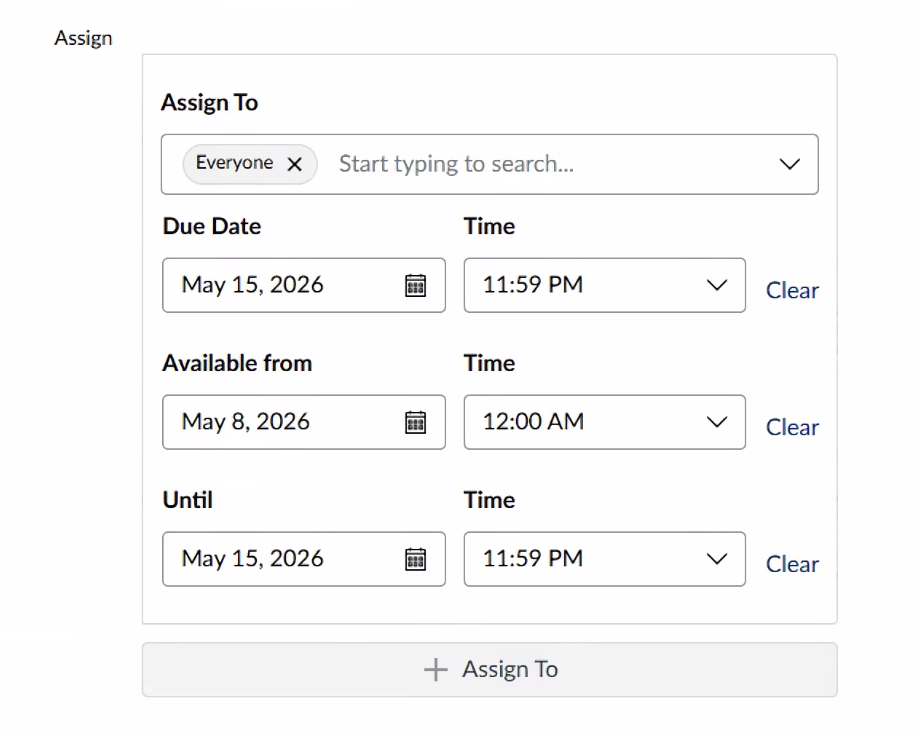
- At the bottom of that section, click "+Assign To”.
- This creates a second "Assign To" section.
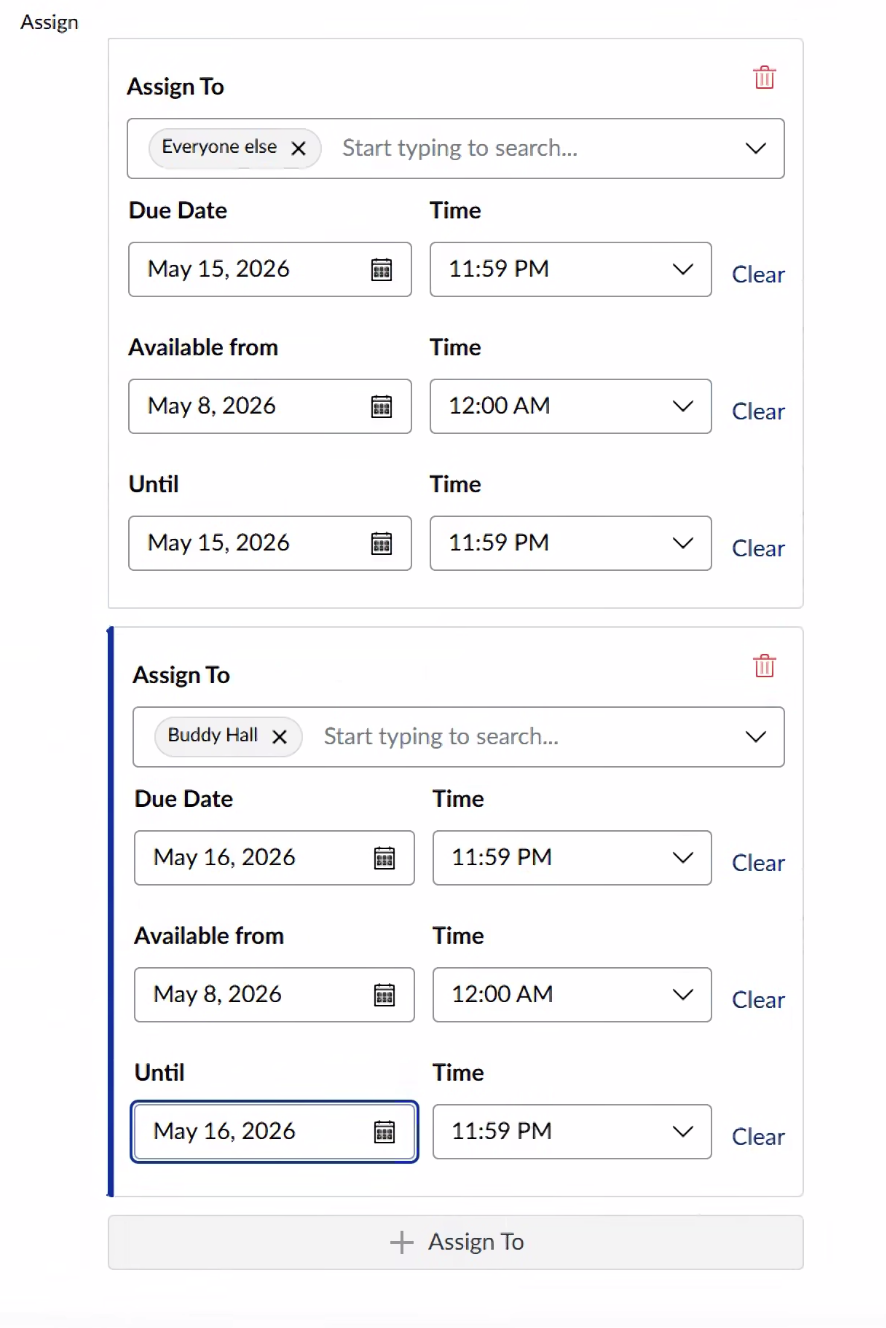
- In that second section, select the appropriate students for the extended due date or availability.
- Set the Due Date and Time
- Set the "Available From" and “Until" dates and times.
- Click “Save" at the bottom right of the screen.
If an instructor has already accidentally removed the the first "Assign To" Section that had “Everyone” listed, they may add another “Assign To” section that is for “Everyone Else" with the original dates and times.
For More Help
If you are trying this change and have run into problems, you may email elearning@uky.edu for further assistance.
 View Upcoming Training Events